CSS Selectors 101
Targeting Elements with Precision
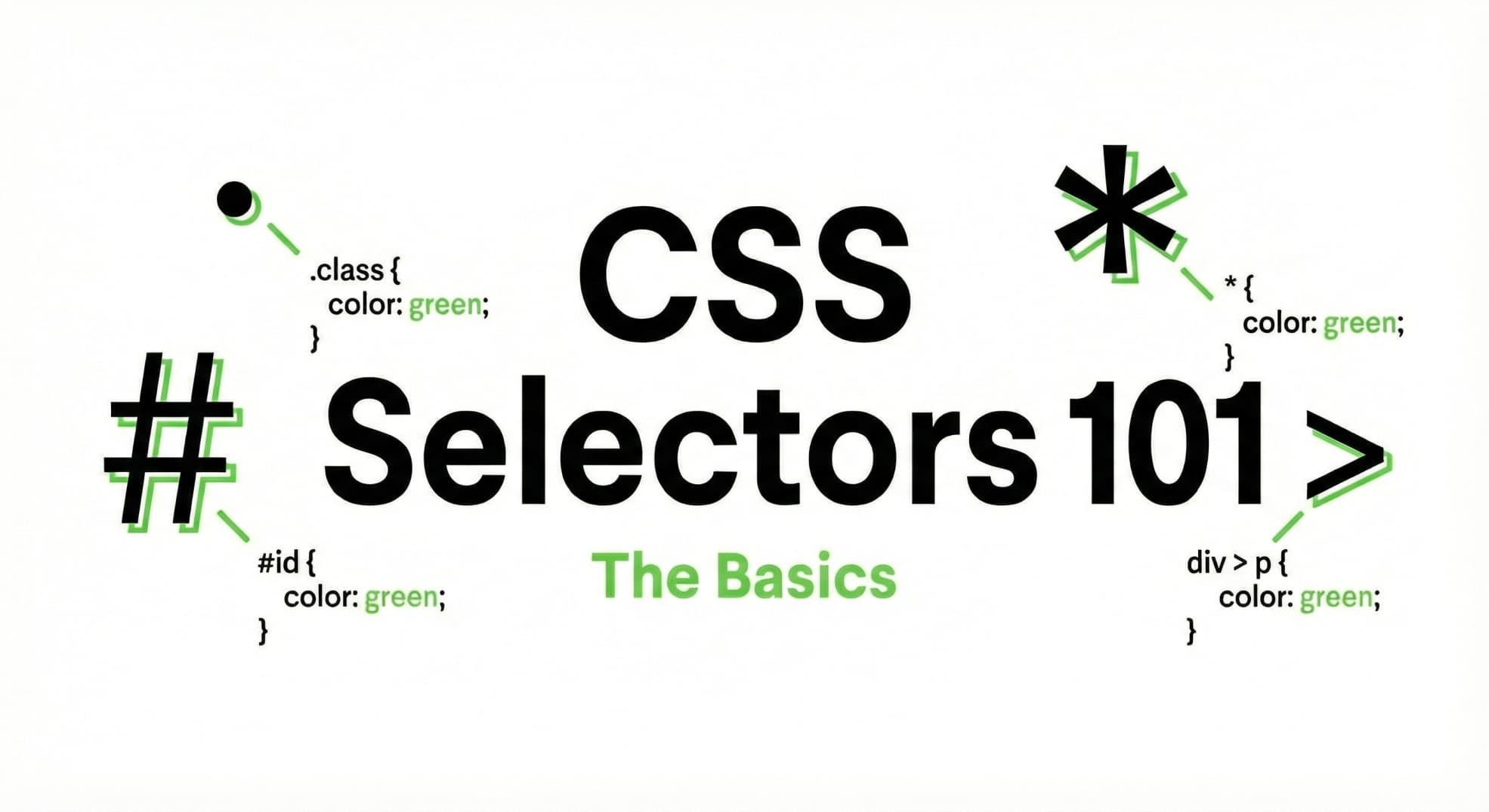
Introduction: Why Do We Need CSS Selectors?
Imagine you're walking into a classroom with 30 students and want to give specific instructions to certain people. You can't just shout instructions into the room and hope the right people listen—you need a way to target or choose who you're talking to.
That's exactly what CSS selectors do. They're the way CSS "chooses" which HTML elements to style. Without selectors, CSS would have no idea which elements should be colored blue, which should be larger, or which should have a specific font. Selectors are the bridge between your CSS rules and the HTML elements they affect.
Think of it this way: HTML creates the structure (the students in the room), and CSS selectors act as the spotlight that shines on specific students to apply styles (instructions) to them.
The Core Idea: Selectors as Pointers
At their heart, CSS selectors are ways to point to or target specific HTML elements so you can apply styles to them.
A Real-World Analogy
Imagine you work at a company with 100 employees. You could target people in different ways:
By their job title: "All managers get a corner office" → targets everyone in that role
By their name: "Sarah gets the parking spot" → targets one specific person
By their department badge: "Everyone with a red badge gets access to the server room" → targets a specific group
CSS selectors work exactly the same way:
Element selectors target all elements of a type (like all managers)
Class selectors target elements with a specific label (like a red badge)
ID selectors target one unique element (like Sarah's parking spot)
Now that you understand the concept, let's learn how to actually use them.
Element Selectors: Targeting by Tag Name
The simplest selector is the element selector. It targets all HTML elements of a specific type by using the tag name.
How It Works
When you write:
p {
  color: blue;
}
You're saying: "Make every <p> tag on this page blue."
Why This Matters
Element selectors are powerful because they apply a style to all elements of that type at once. This is great for setting base styles across your entire page.
Real Example
HTML:
<p>This is the first paragraph.</p>
<p>This is the second paragraph.</p>
<p>This is the third paragraph.</p>
CSS:
p {
  color: blue;
  font-size: 16px;
}
Result: All three paragraphs turn blue and grow to 16px.
The Catch
Element selectors target everything of that type. If you want to style only some paragraphs differently, you need something more specific. That's where class selectors come in.
Class Selectors: Targeting with Reusable Labels
Classes are like stickers or labels you put on HTML elements. They let you create groups of elements that you want to style the same way, without affecting every single element of that type.
How It Works
In HTML, you add a class attribute to an element:
<p class="highlight">This paragraph is special.</p>
In CSS, you target the class with a dot (.) before the class name:
.highlight {
  background-color: yellow;
  font-weight: bold;
}
Why Classes Are Powerful
Reusable: You can use the same class on multiple elements
Specific: You can style only the elements you want
Flexible: You can change which elements have a class without touching CSS
Real Example
HTML:
<p>Regular paragraph.</p>
<p class="highlight">Important paragraph!</p>
<p>Another regular paragraph.</p>
<p class="highlight">Another important one!</p>
CSS:
.highlight {
  background-color: yellow;
  font-weight: bold;
}
Result: Only the two paragraphs with class="highlight" are styled. The others stay normal.
The Analogy
Think of classes like colored shirts. If everyone in the room is a student (element selector), but you want to give special instructions to only the students wearing blue shirts (class selector), you'd say "Listen up, everyone in blue shirts!"
ID Selectors: Targeting the Unique
IDs are for when you have one specific element that's unique and needs its own style. They're like a person's social security number—no two people should have the same one.
How It Works
In HTML, you add an id attribute:
<div id="main-header">Welcome to My Site</div>
In CSS, you target the ID with a hash (#) before the name:
#main-header {
  background-color: navy;
  color: white;
  text-align: center;
}
Key Rule: Uniqueness Matters
Each ID should only be used once on a page. If you need to style multiple elements the same way, use a class instead.
Real Example
HTML:
<div id="main-header">Welcome to My Site</div>
<p>This is the page content.</p>
<div id="footer">Copyright 2026</div>
CSS:
#main-header {
  background-color: navy;
  color: white;
  padding: 20px;
}

#footer {
  background-color: gray;
  text-align: center;
  font-size: 12px;
}
Result: The header and footer each get their unique styles. No other elements are affected.
The Analogy
If classes are colored shirts that many people wear, IDs are custom name tags. Your name tag is unique to you; no one else should have the exact same one.
Group Selectors: Sharing Styles Without Repetition
Sometimes multiple selectors need the same styles. Instead of writing the same rules over and over, you can group selectors together using commas.
How It Works
h1, h2, h3 {
  color: purple;
  font-family: Arial;
}
This says: "Apply these styles to all <h1>, <h2>, and <h3> elements."
Why This Saves You Work
Without grouping, you'd write:
h1 {
  color: purple;
  font-family: Arial;
}

h2 {
  color: purple;
  font-family: Arial;
}

h3 {
  color: purple;
  font-family: Arial;
}
With grouping, you write it once. Much cleaner!
Real Example
HTML:
<h1>Main Title</h1>
<h2>Subtitle</h2>
<h3>Small Heading</h3>
<p>Regular paragraph text.</p>
CSS:
h1, h2, h3 {
  color: purple;
  font-family: Arial;
}

p {
  color: black;
}
Result: All three headings are purple with Arial font. The paragraph stays black (default).
The Analogy
Grouping is like giving the same instruction to a whole team instead of repeating it to each person individually. "Hey team, everyone gets a lunch break" is faster than telling each team member one by one.
Descendant Selectors: Targeting Elements Inside Other Elements
Sometimes you want to style an element only when it's inside another specific element. This is where descendant selectors come in. They let you be more precise about where a style applies.
How It Works
You write two selectors separated by a space:
div p {
  color: blue;
}
This says: "Style every <p> tag that is inside a <div>."
Why This Is Useful
Imagine you have paragraphs in different places on your page—some in a sidebar, some in the main content area. With a descendant selector, you can style paragraphs differently depending on where they are.
Real Example
HTML:
<div class="main">
  <p>This paragraph is inside the main div.</p>
  <p>So is this one.</p>
</div>

<aside class="sidebar">
  <p>This paragraph is in the sidebar.</p>
</aside>
CSS:
.main p {
  color: blue;
  font-size: 16px;
}

.sidebar p {
  color: gray;
  font-size: 14px;
}
Result: Paragraphs in .main are blue and larger. Paragraphs in .sidebar are gray and smaller.
The Analogy
Think of it like a family tree. You might say "all cousins inside the Johnson family" or "all employees inside the marketing department." The descendant selector works the same way: it targets an element, but only when it's inside a specific parent.
Selector Priority: Understanding Who Wins
When multiple selectors could target the same element, CSS has to decide which style to apply. Different selectors have different "weights" or priorities.
The Hierarchy
Some selectors are more specific than others, so they win more often.
ID selector > Class selector > Element selector
#special > .highlight > p
What This Means
HTML:
<p class="highlight" id="special">This paragraph.</p>
CSS:
p {
  color: blue;
}

.highlight {
  color: yellow;
}

#special {
  color: red;
}
Result: The paragraph turns red, because the ID selector has the highest priority, even though all three rules could apply.
Why Priority Matters
Priority helps CSS decide which rule to follow when multiple rules could affect the same element. More specific selectors (like IDs) usually override less specific ones (like element selectors). This makes sense: if you're talking to "Sarah specifically" (ID), that matters more than talking to "all managers" (element selector).
Putting It All Together: Selectors Are Your Foundation
You now understand the main building blocks of CSS selectors:
Element selectors target all elements of a type
Class selectors target elements with a specific label (reusable)
ID selectors target one unique element
Group selectors let multiple selectors share the same styles
Descendant selectors target elements inside other elements
Priority helps CSS decide which rule applies when multiple rules match
These six concepts are the foundation of all CSS styling. Everything else you learn in CSS builds on these ideas.
Why Mastering Selectors Matters
Before you learn about colors, fonts, spacing, or animations, you need to understand selectors. They're how CSS finds the elements to style. Once you can confidently target any element on a page, everything else becomes easier.
Think of it this way: a painter can't paint a masterpiece without first knowing how to pick the right brush and point it at the right canvas. Selectors are your brush—and the canvas is your HTML.
Key Takeaways
CSS selectors are how CSS chooses which elements to style.
Element selectors are the simplest; they target all elements of a type.
Class selectors are reusable labels for targeting specific elements.
ID selectors are for unique, one-of-a-kind elements.
Group selectors reduce repetition by applying the same styles to multiple selectors.
Descendant selectors target elements based on where they appear (inside other elements).
Priority determines which style wins when multiple selectors apply to the same element.
Mastering selectors is essential before learning advanced CSS styling.


